 Polyptych
Your computer, on every screen. With everyone at the controls.
Share a desktop with up to eight people. Point at a detail, sketch over it, react, talk it through and make the edit together. Join from Mac, Windows, Linux, iPhone, iPad, Android or a browser.
Free for 14 days. Then one purchase covers every platform, no subscription. How it works
Why Polyptych
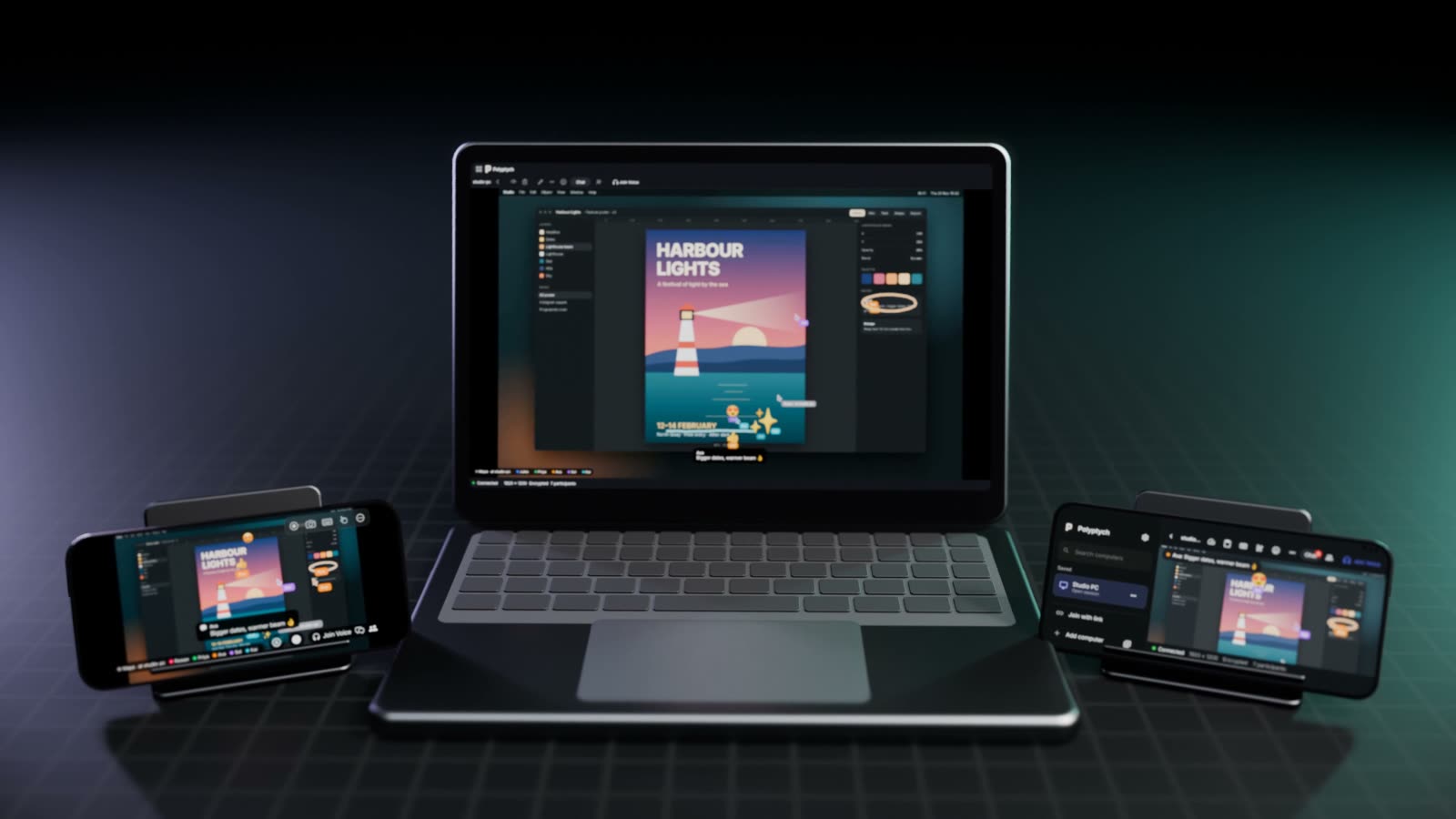
A polyptych is one picture painted across hinged panels. Polyptych does the same with your desktop: one computer, shown on every device that joins it, with everyone free to point, click and type.
Multiplayer by default
Up to eight people on one computer, each with a named cursor, their own keys and no fighting over the mouse.
Built for speed
Hardware-encoded video at up to the display's refresh rate. About 180 fps from a Mac and 120 fps on ProMotion.
Private by design
TLS 1.3 over QUIC with pinned certificates, and the apps you choose blurred before your screen ever leaves the computer.
Eight people.
One computer.
Pair on code, walk someone through a setting or review a design together. Everyone gets their own named cursor, sees who's here, and types and clicks independently.
Get Polyptych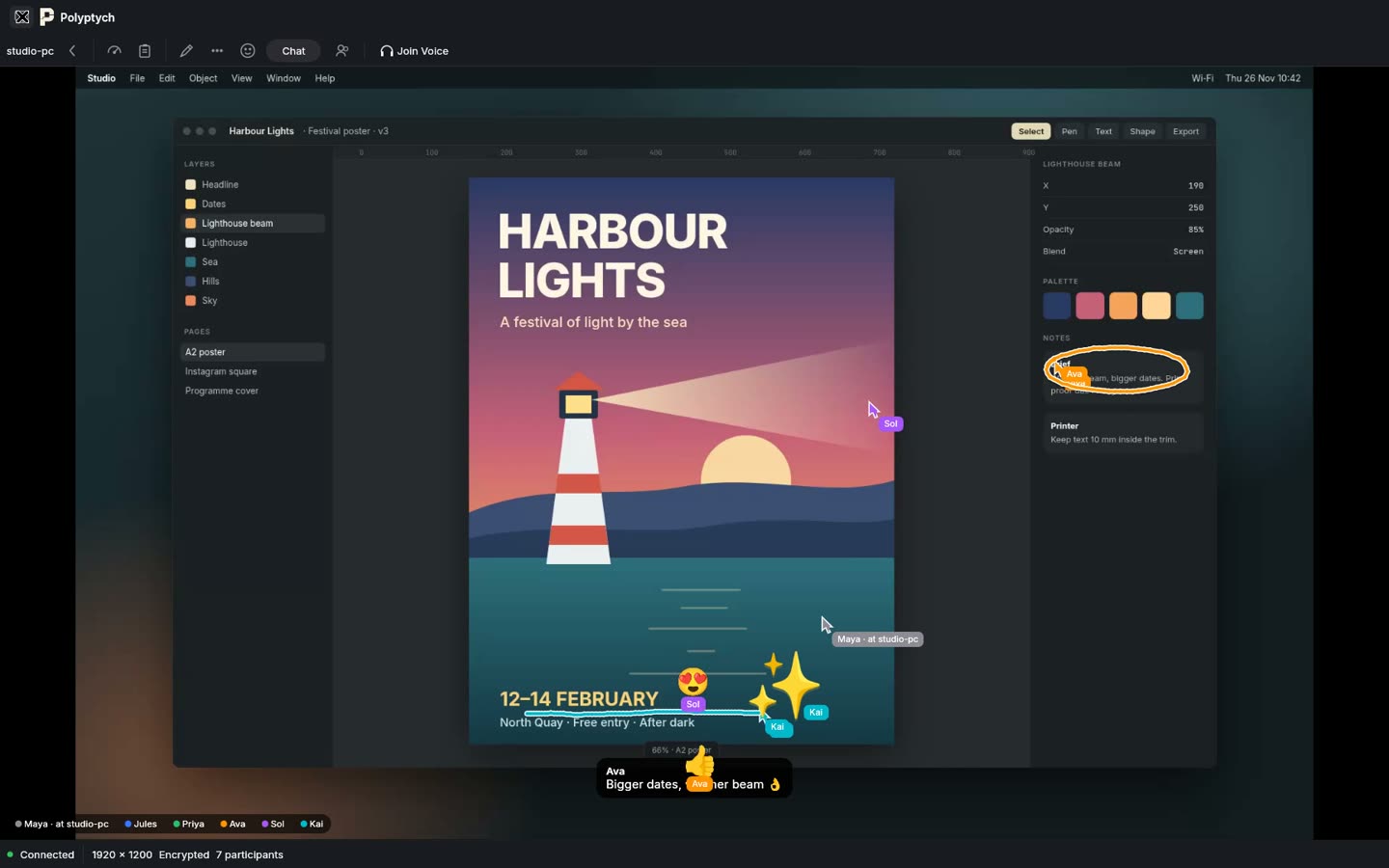
Live presence
Everyone's cursor and name, updated 60 times a second, on every device.
Draw on the shared screen
Circle a detail or trace a path. Each stroke carries its author’s colour and name, and fades after a few seconds unless you keep it.
React without interrupting
Float an emoji up the screen, or stick one exactly where you click. Everyone sees who sent it.
Talk or type
Open text chat or join voice, with noise suppression and push to talk. Live captions are transcribed on your own device, never in the cloud, and you can save a transcript afterwards.
A computer has one real pointer, so Polyptych gives everyone a virtual one. On a Mac, plain clicks on buttons, menus and links go through Accessibility without moving the real pointer at all. Drags and scrolls borrow it for a moment and hand it straight back.
Send a link.
Meet on your desktop.
Open an invite and choose Join in browser. Guests can point, type and draw alongside the native apps, without installing Polyptych or creating an account.
Open the web client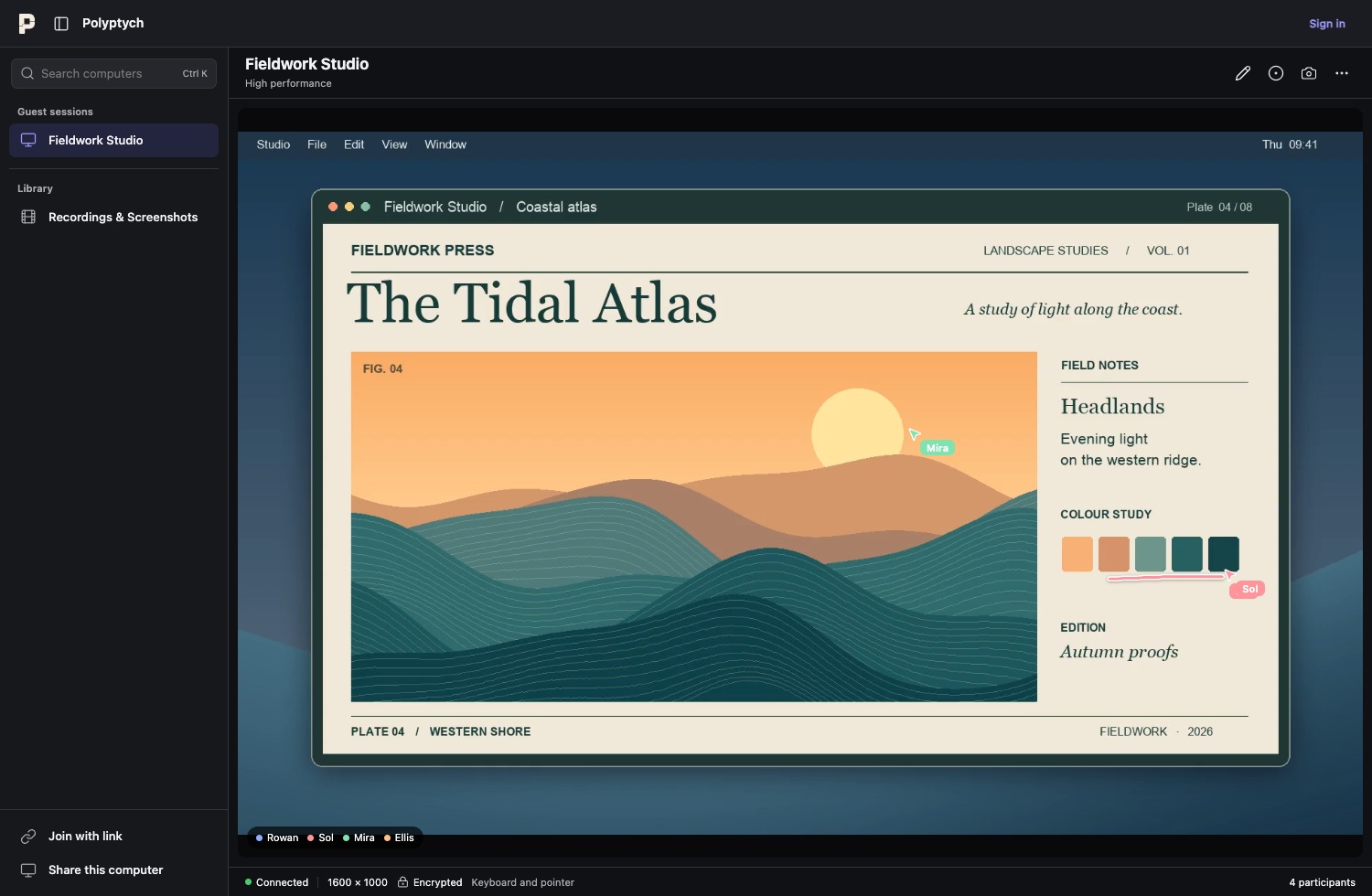
Invite someone for a session
Set an expiry, reserve the invite for one person, or make it view-only. End the invite to disconnect its guests.
Choose who can act
Moderators can switch participants to view-only, turn off drawing for someone, or clear everyone’s marks.
Save a browser capture
Take a screenshot or record the screen. Open the browser’s local capture library to review or download it. Browser recordings contain screen video only.
A desktop that
feels made for touch.
Native apps for iPhone, iPad and now Android phones and tablets, with drawing, reactions, voice and captions. Touch mode works like a touchscreen: tap what you want to click. Trackpad mode turns the screen into a laptop trackpad. A key row adds esc, tab, sticky modifiers, arrows and F1–F12, and hardware keyboards send every shortcut straight through.
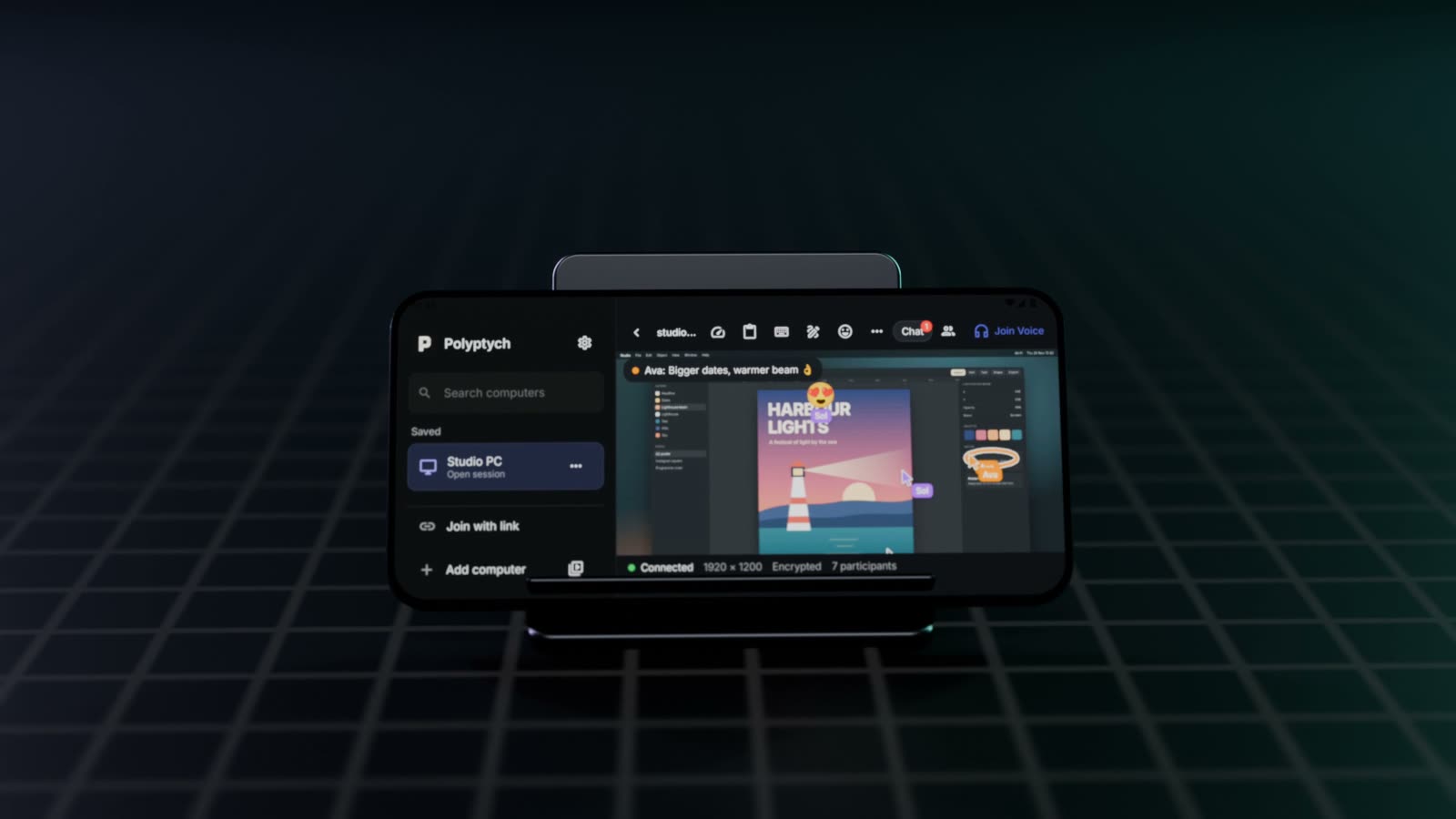
Gestures you already know
Pinch to zoom, hold for a right-click with a magnifier, three-finger swipes for Mission Control and Spaces.
Fit or Fill
See the whole screen, or fill your display and pan with two fingers. Momentum scrolling throughout.
Shortcuts across platforms
⌘ becomes Ctrl on a PC and Ctrl becomes ⌘ on a Mac, so ⌘C copies everywhere.
Unfold for the desktop.
Fold for the controls.
Polyptych is built for iPhone Duo. Open it and the remote desktop fills the big inner screen, edge to edge, with the controls floating over it. Fold it and those controls move into a slim rail beside the outer screen, out of the way of the clock and camera. The session carries on through every fold.
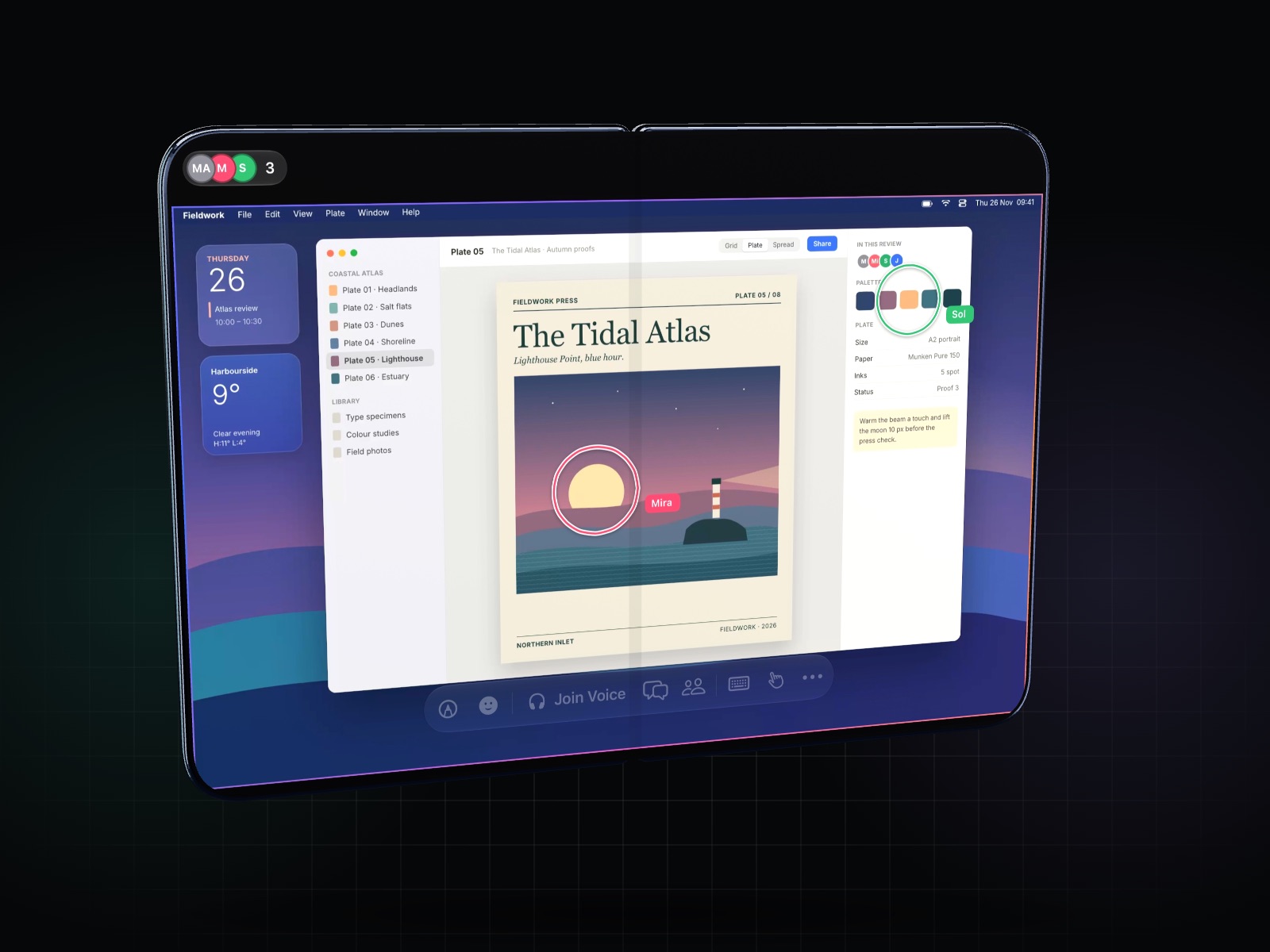
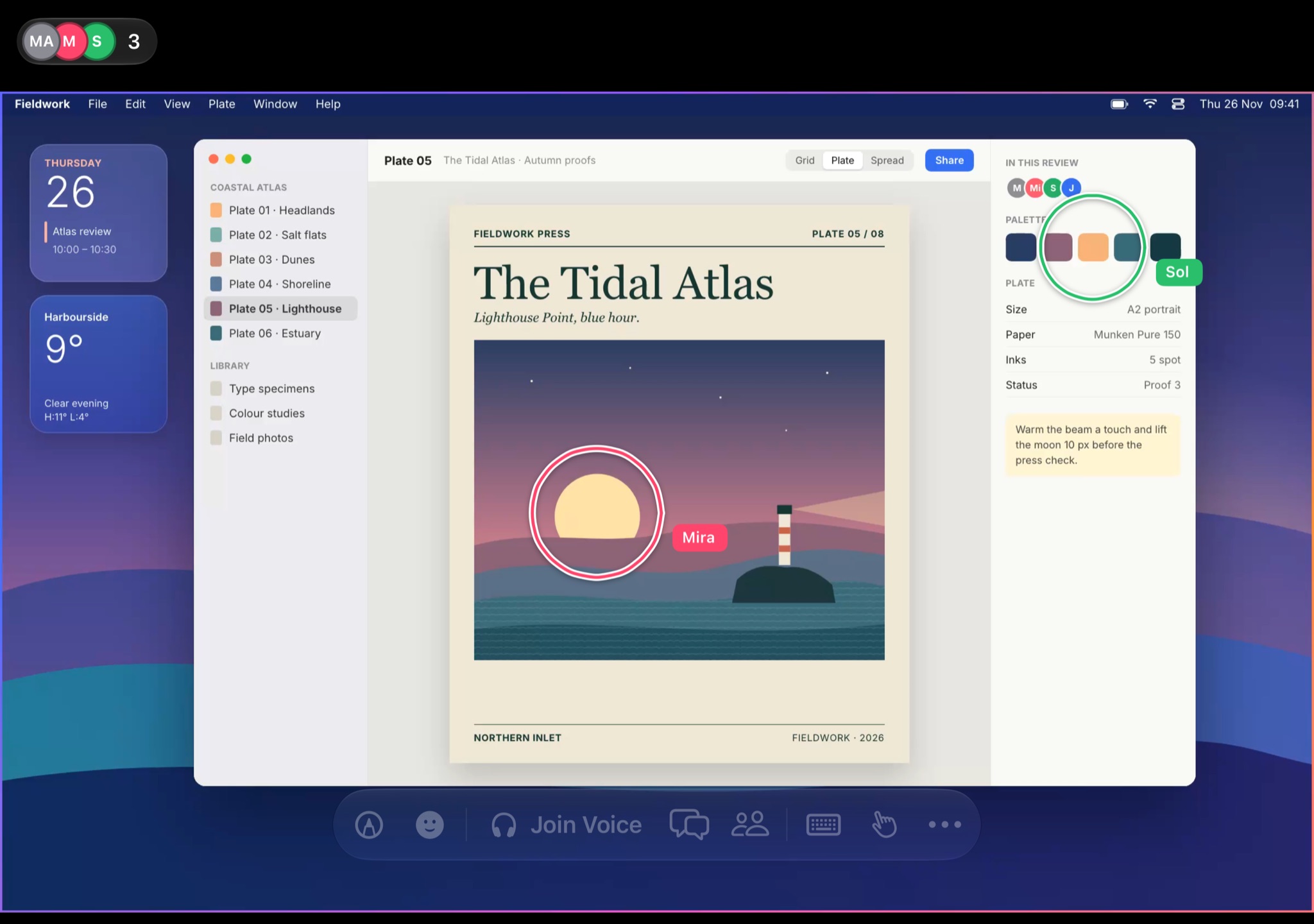
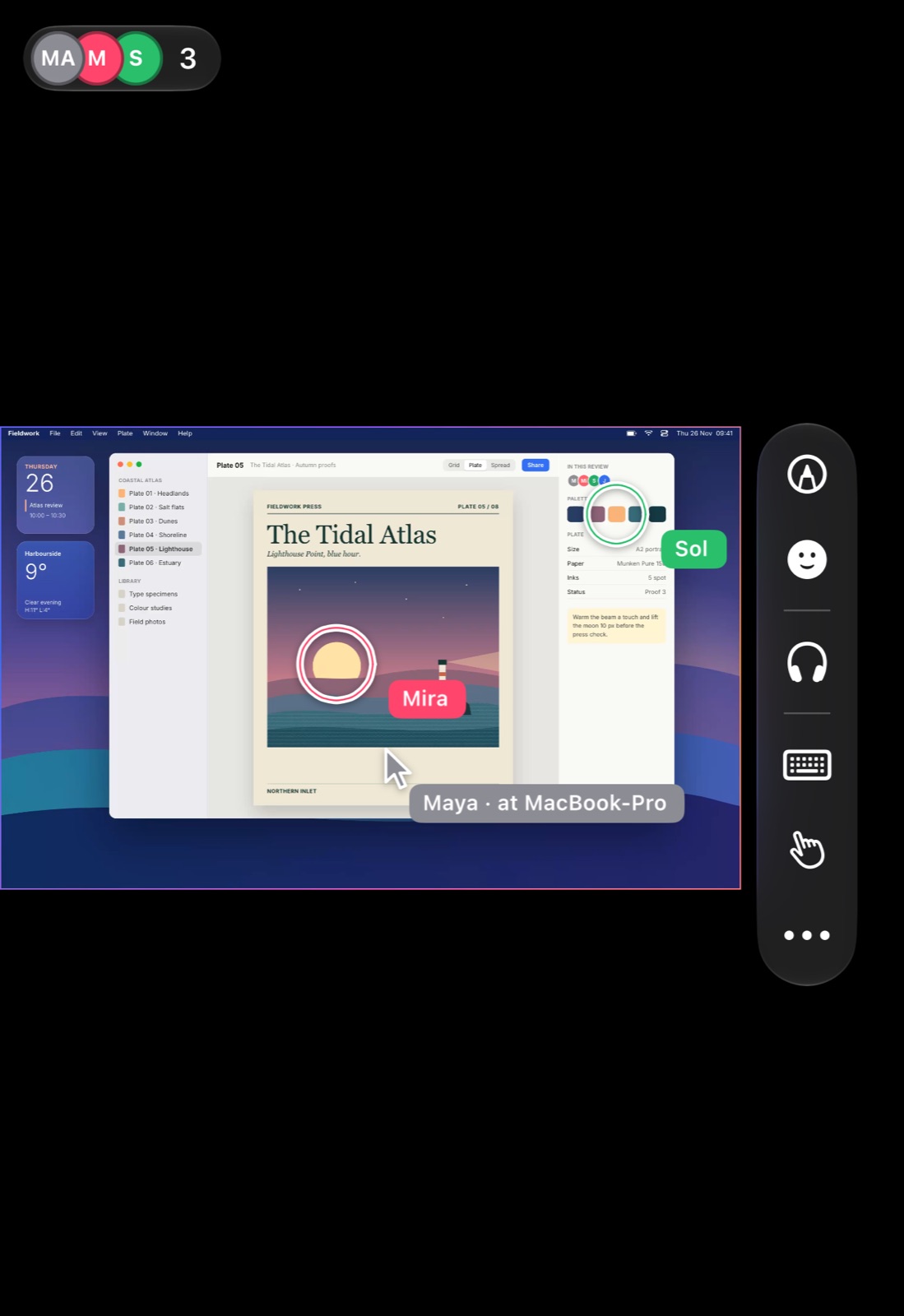
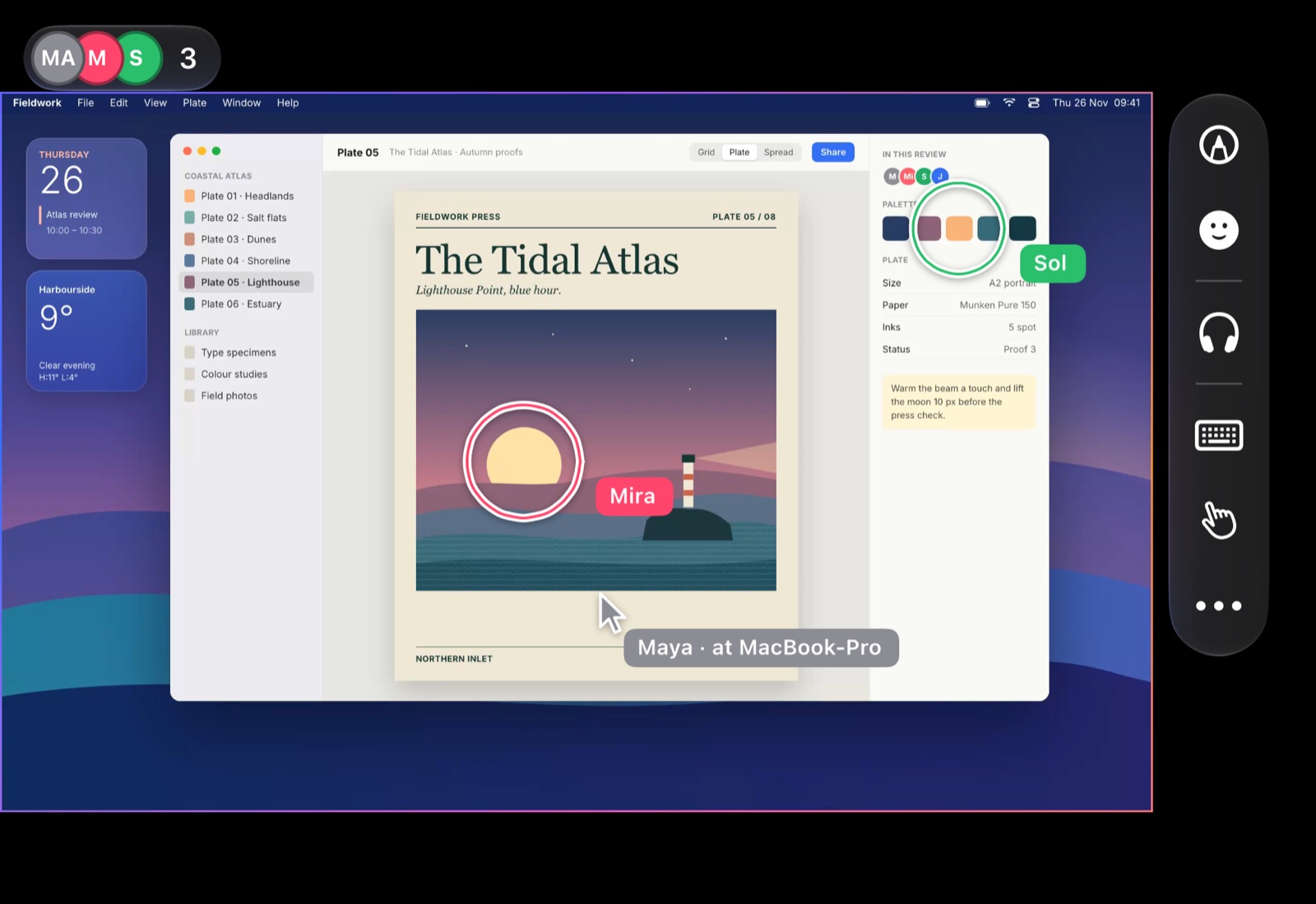
The whole desktop, open
Open in landscape, the shared screen runs the full width of the inner display. The controls float over it and fade away while you work.
A side rail, folded
On the outer screen the keyboard, touch mode, drawing, reactions and voice stack in a vertical rail that avoids the clock and camera in portrait and landscape.
Fold mid-session
Open, half-open or folded, the layout follows the screen you're using and the connection stays up.
Smooth enough to
forget it's remote.
Apple's Screen Sharing tops out around 60 updates a second. When Polyptych shares a computer itself, it streams at up to the display's refresh rate, so scrolling, video and animation look the way they do at the desk.
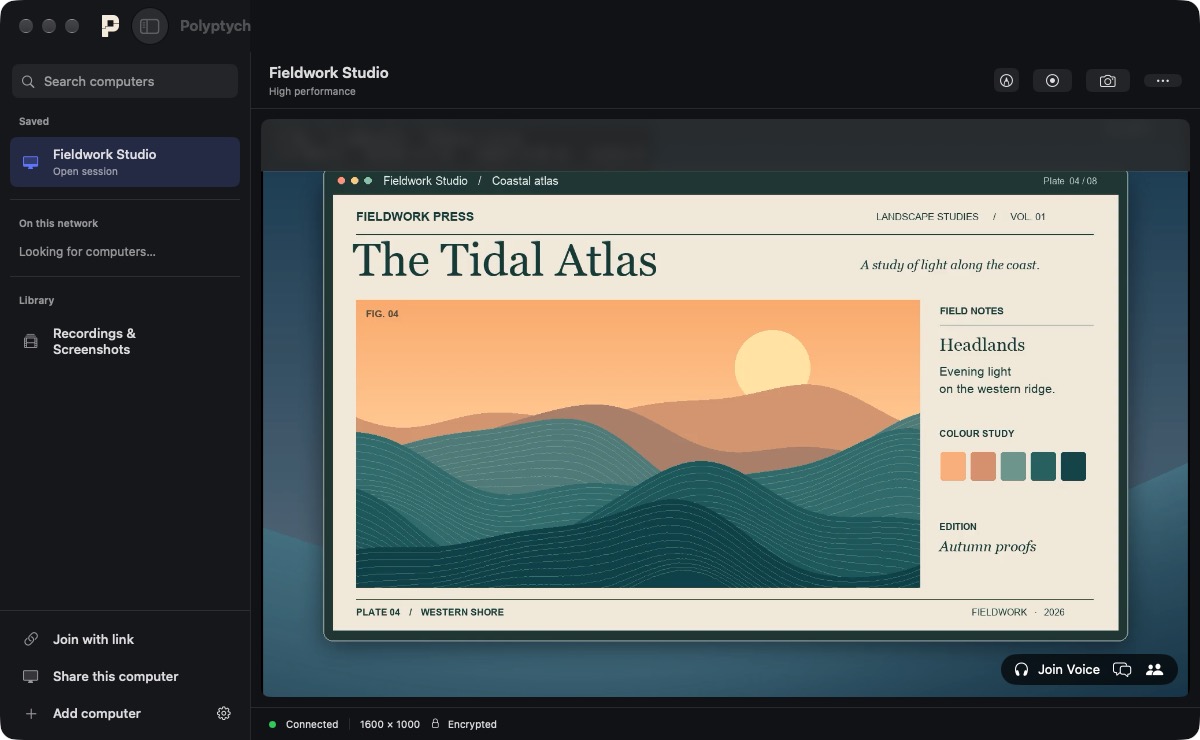
Hardware all the way
Captured with ScreenCaptureKit, encoded on the Mac's video engine, decoded on your device's GPU.
No copies
Frames go straight to the display. Only the parts of the screen that change are redrawn.
Performance stats
An overlay shows frames per second, bandwidth and decode time whenever you want to tune.
About 180 fps on an M4 Mac mini driving a 240 Hz display. Windows and Linux encode H.264 in software today, reaching 50 to 60 fps at 1080p on a busy screen.
Encrypted in flight.
Pinned on first use.
Native Polyptych sessions carry video, keystrokes, clipboard and login encrypted with TLS 1.3. Polyptych remembers each computer the first time you connect and refuses it if its certificate ever changes.
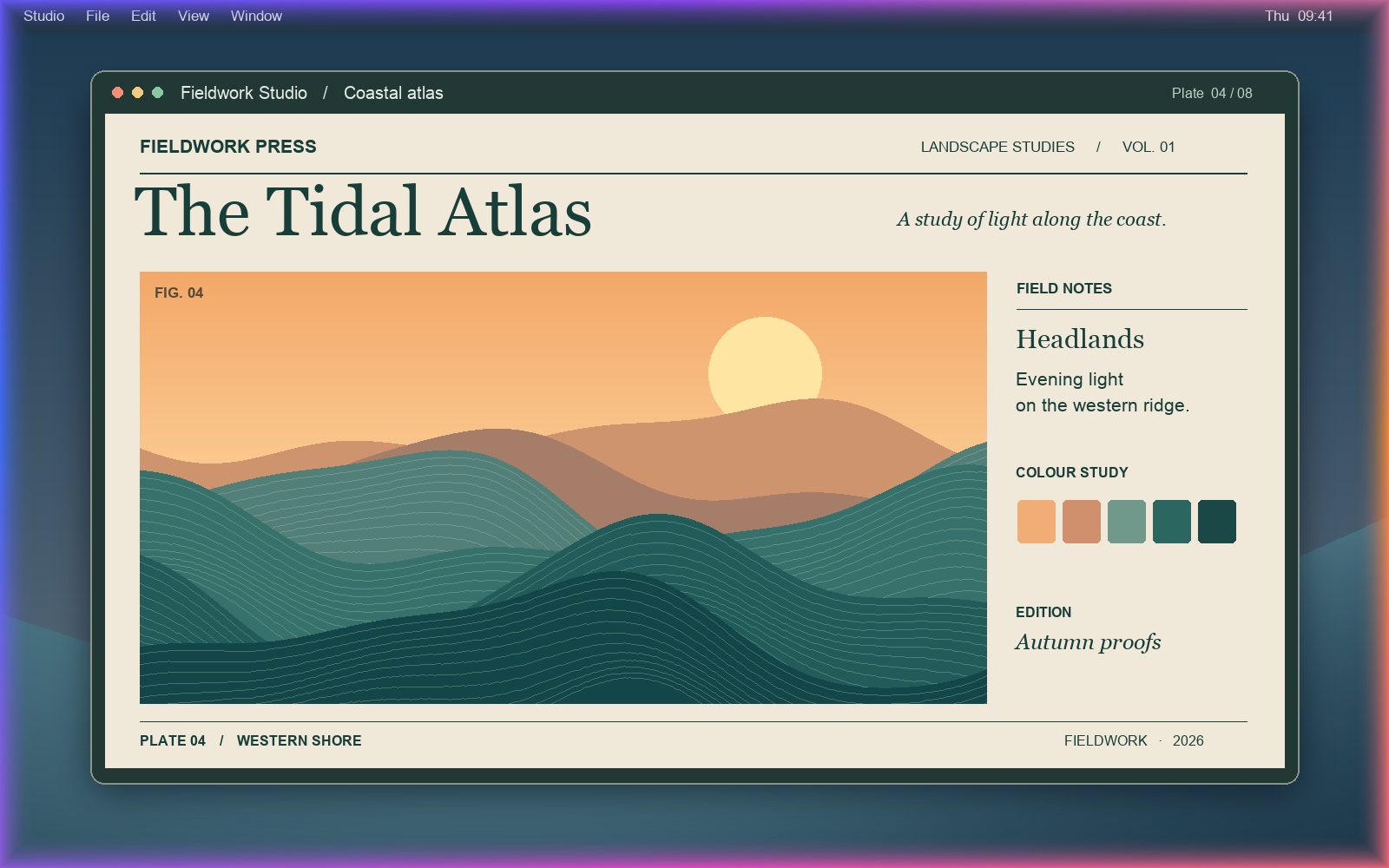
Connection halo
A soft border lights up on the shared computer when someone connects and fades when the last viewer leaves. You can turn it off in sharing settings.
Its own certificate
Every shared computer makes its own key. Check the fingerprint in its Sharing settings.
Your login stays yours
Passwords never cross the network in the clear and live in the system keychain.
Face ID and Touch ID
Optionally require biometrics before connecting or editing a saved login.
Statistics on your terms
Usage statistics and crash reports are switches you see during setup and can change any time. They never include anything from your sessions, apps or files. See every value we collect.
Only administrators and the signed-in user can connect with an account. Typing an address that looks public triggers a warning first. A Mac's built-in Screen Sharing encrypts only the login, so use it at home or over a VPN.
Share your screen.
Not your messages.
Choose apps to keep to yourself, like WhatsApp, Slack or your bank. Polyptych blurs them on your computer before the picture is sent, so a message that pops up mid-review stays between you and your screen.
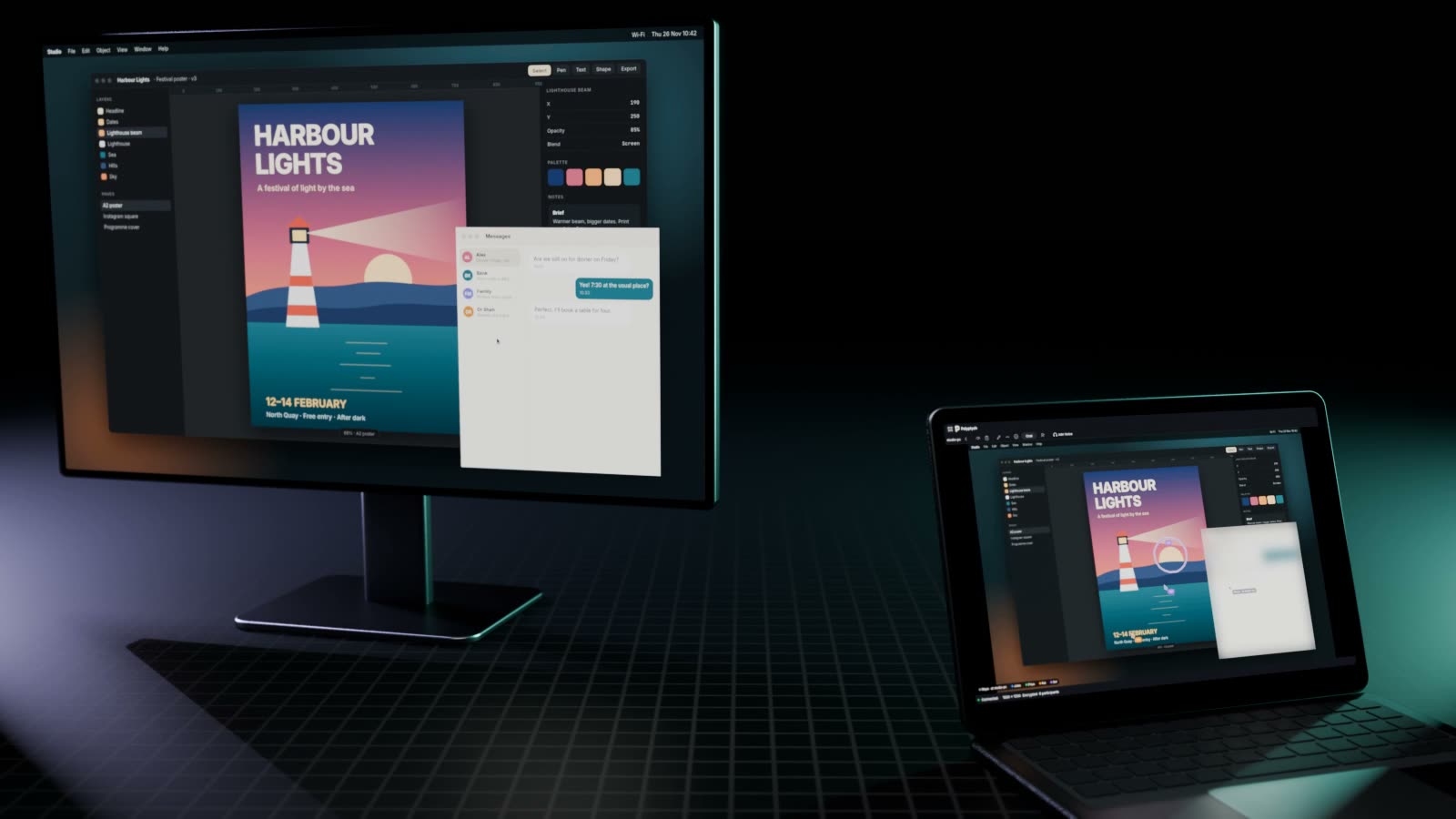
Blur the apps you choose
Messaging apps are on the list from the start. Add or remove any app from Sharing settings.
Hide notifications
Notification banners are blurred for viewers too, and Do Not Disturb can switch on while anyone is connected.
Always know you're shared
A soft halo around the screen shows when someone is watching and fades when the last person leaves.
The blur is applied to each frame on the shared computer, before it's encoded. Viewers never receive the hidden pixels, so there's nothing to un-blur. Works on Mac, Windows and Linux hosts.
Record a session.
Share it in a tap.
Record what a session shows to an MP4 at up to 60 fps, cursor included, and send it with the share sheet. Screenshots are saved at the remote screen's full resolution, and everything is filed under the computer it came from.
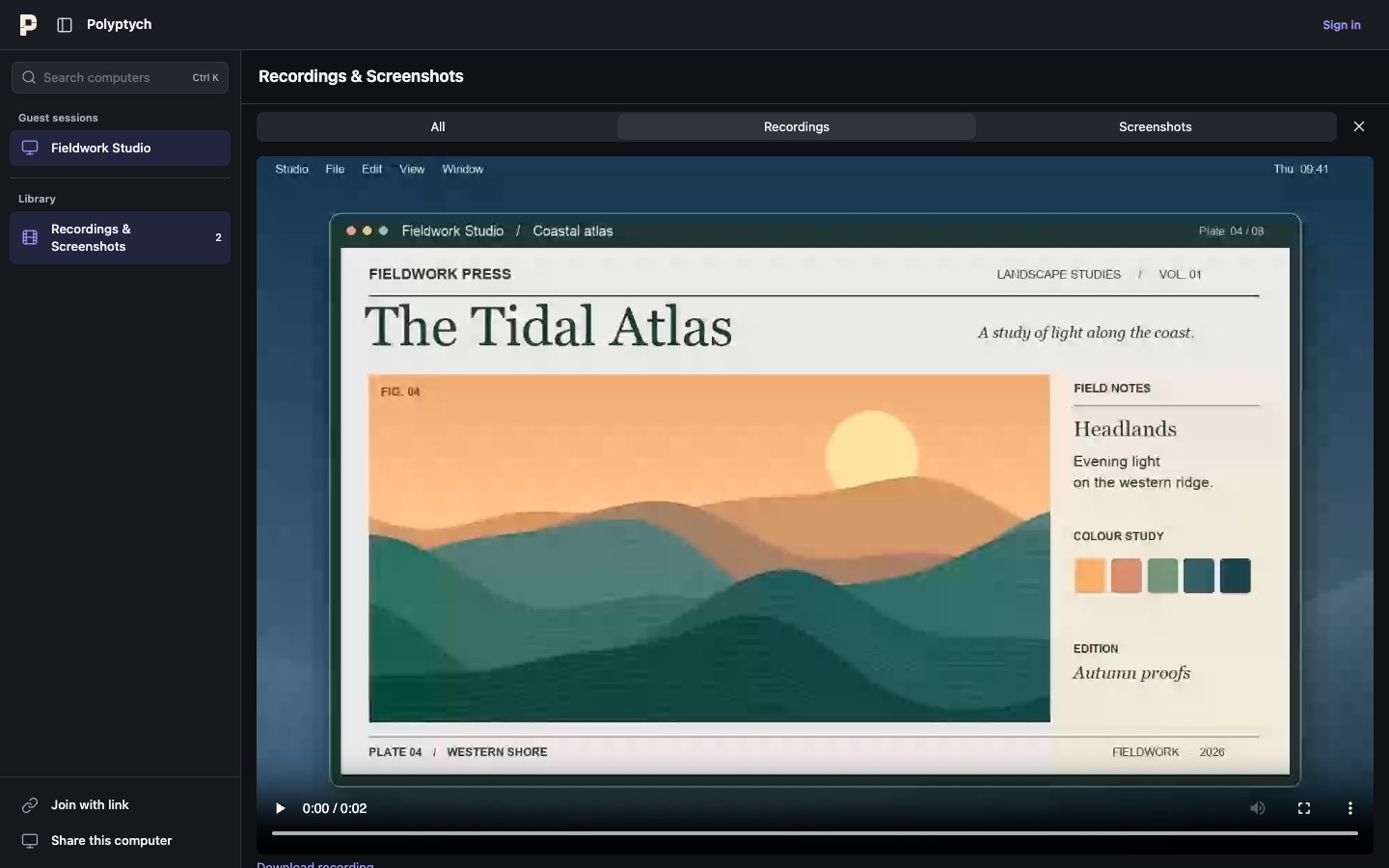
Keep the review with the recording
Mac and iPad recordings include shared drawings and the voice call. With captions enabled, a subtitle file is saved alongside the movie.
One library
Thumbnails, playback, sharing and Show in Finder, filtered to one computer or all of them.
Where they live
Files app on iPhone and iPad. Movies and Pictures on the Mac.
From setup to reconnect.
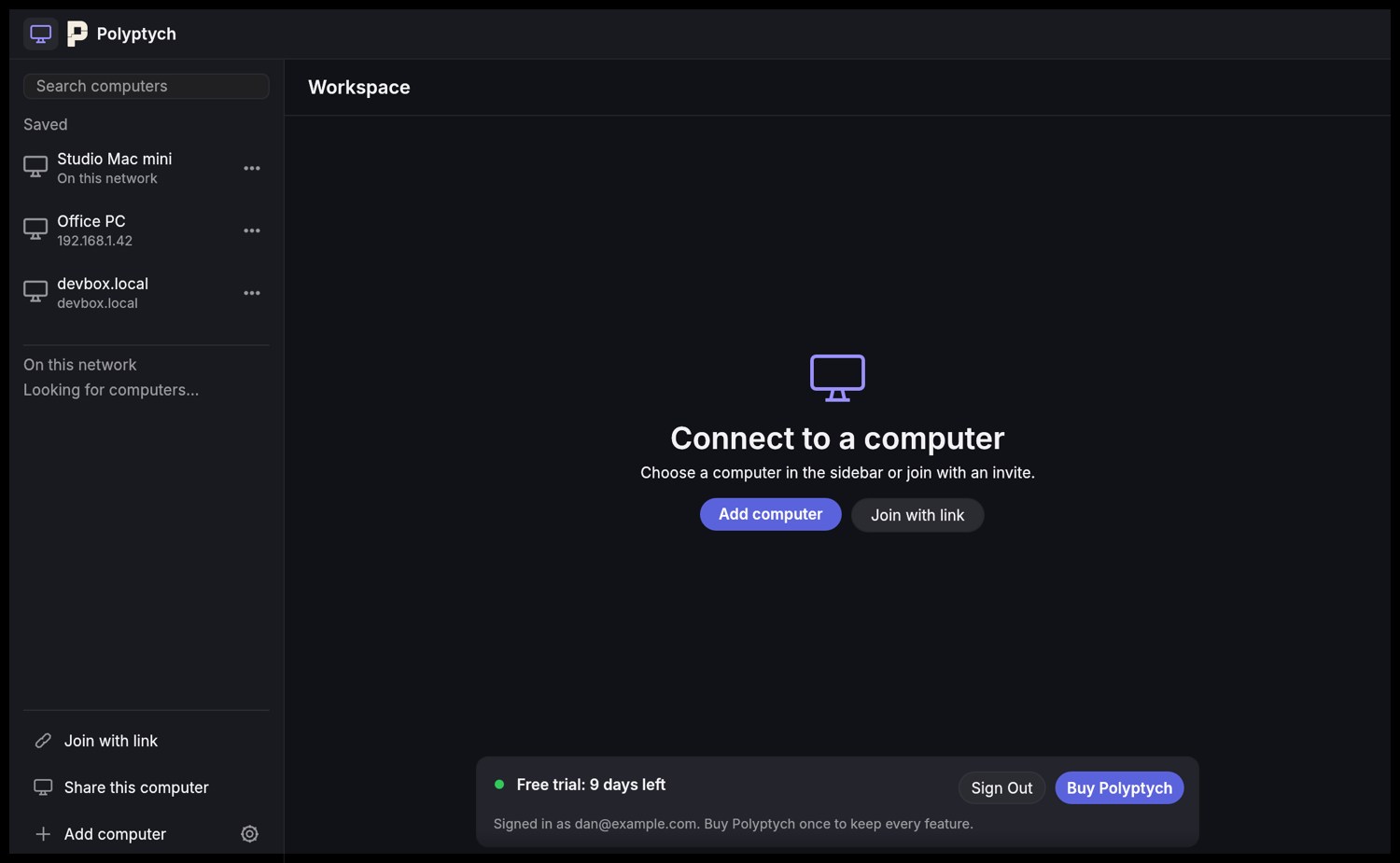
Find a computer, choose a connection method and tune it for your network.
Every app connects
to every other.
Polyptych speaks the same encrypted protocol everywhere, so a Linux box can join a Mac, an Android phone can drive a Windows PC, and everyone can share one screen.
See every download| Control from | Mac with Polyptych | Mac Screen Sharing | Windows | Linux |
|---|---|---|---|---|
| iPhone and iPad | Yes | Yes | Yes | Yes |
| Android | Yes | Yes | Yes | Yes |
| Mac | Yes | Yes | Yes | Yes |
| Windows | Yes | Not yet | Yes | Yes |
| Linux | Yes | Not yet | Yes | Yes |
| Web browser | Yes | — | Yes | Yes |
Multiplayer and high performance need Polyptych on the shared computer. Browser invites need WebRTC data channels and H.264 WebCodecs. Sharing from Linux needs an X11 session for now.
Try it free.
Buy it once.
- 1Download and sign inSign in with Google, Apple or your email. Your trial starts and every feature is on.
- 2Use everything for two weeksShare your computers, bring in up to eight people, talk, draw, react and record.
- 3Buy once, use it everywhereOne purchase covers Windows, Android, Mac, Linux, iPhone and iPad, with updates included. No subscription.
Also $49 or €45. Prices include VAT where it applies; US sales tax is added at checkout.
Buy PolyptychAfter the trial you can still join sessions and watch for free. Guests you invite with a link never need to pay or sign in. Refunds within 14 days, no questions asked.
Get early access
Join the beta list. We invite people in waves, and you'll hear first about launch deals.
- Beta builds for every platform
- First to hear about launch deals
- A direct line to the person building it
We'll only email you about the beta and the launch. Unsubscribe any time. Privacy
Questions,
answered.
How does the free trial work?
Sign in when you first open Polyptych and you get every feature free for 14 days. After that, buy it once to keep sharing your computers. Without a licence you can still join sessions and watch, and anyone you invite with a link can join without paying.
Do I need an account?
Only to start the free trial and keep your purchase across computers. You can use Google, Apple or just your email address. Guests joining from an invite link don't need one.
Do I have to install anything on my Mac?
No. Turn on Screen Sharing in System Settings → General → Sharing and Polyptych on your iPhone, iPad or another Mac can connect straight away. Install Polyptych on the Mac when you want high performance, a fully encrypted session or multiplayer.
Is my session private?
When the shared computer runs Polyptych, everything is encrypted with TLS 1.3 and its certificate is pinned. With a Mac's built-in Screen Sharing only the login is encrypted, which is how Apple's protocol works, so use that mode at home or over a VPN such as Tailscale.
Can I connect when I'm away from home?
Yes. On a computer sharing with Polyptych, create an invite link and choose how long it works. Guests can open it in the app or a supported browser. Invites try a direct connection first. Hosts with a VIP key can enable a relay for networks that block it. You can also connect over a private network like Tailscale. Please don't forward Screen Sharing's port 5900 to the internet.
How many people can join at once?
Up to eight, on a computer sharing with Polyptych. A Mac's built-in Screen Sharing is one person at a time.
Does it work on Wayland?
You can control other computers from Linux. Sharing a Linux computer needs an X11 session for now.
Which versions can I get today?
Windows (from the Microsoft Store) and Android (from Google Play) are available now. Mac, iPhone, iPad and Linux are coming within 1–2 weeks. One licence covers Windows, Android, Mac, Linux, iPhone and iPad, so buying now covers the rest when they arrive. Guests can also join from a browser.
Is there an Android app?
Yes. Polyptych for Android runs on phones and tablets with Android 8 or later, with drawing, reactions, voice and captions. Get it on Google Play. Guests can also open an invite in a supported browser.
Are captions sent to the cloud?
No. Polyptych downloads an open speech model once, then transcribes on your own device. What people say is never sent to a transcription service. Captions need a reasonably recent device, and on Android a phone or tablet with 6 GB of memory or more.
Can people in a session see my private apps?
Not the ones on your hidden list. Polyptych blurs those apps, and notification banners, on the shared computer before anything is sent. Messaging apps are hidden from the start, and you can change the list in Sharing settings.
What does Polyptych collect?
Only what your account and licence need, plus usage statistics and crash reports if you leave them on. You choose during setup and can switch them off any time. They never include your screen, files, apps or messages. Every value is listed here, and the privacy policy has the details.

Every screen. Every hand.
Install Polyptych on the computer you want to share. Join from an app or a supported browser.
Free for 14 days. No card needed.